
Introducing ViddyScribe Realtime
Want to hear what is happening on screen? ViddyScribe Realtime adds AI audio descriptions to most public YouTube videos. You can search for a video directly in ViddyScribe, paste a YouTube link, or use the URL shortcut below. Some videos also have a descriptive audio track provided by their creator on YouTube.
Use ViddyScribe Realtime
You can search and try a two-minute preview without an account. Sign in to keep watching within your plan’s viewing limit. No browser extension or download is needed.
Search YouTube in ViddyScribe
- Open ViddyScribe Realtime.
- Type a video title, channel name, or topic into the “Search YouTube, or paste a video link” box.
- Press Enter or select “Search,” then choose a video from the results.
- Press play to watch with audio descriptions.
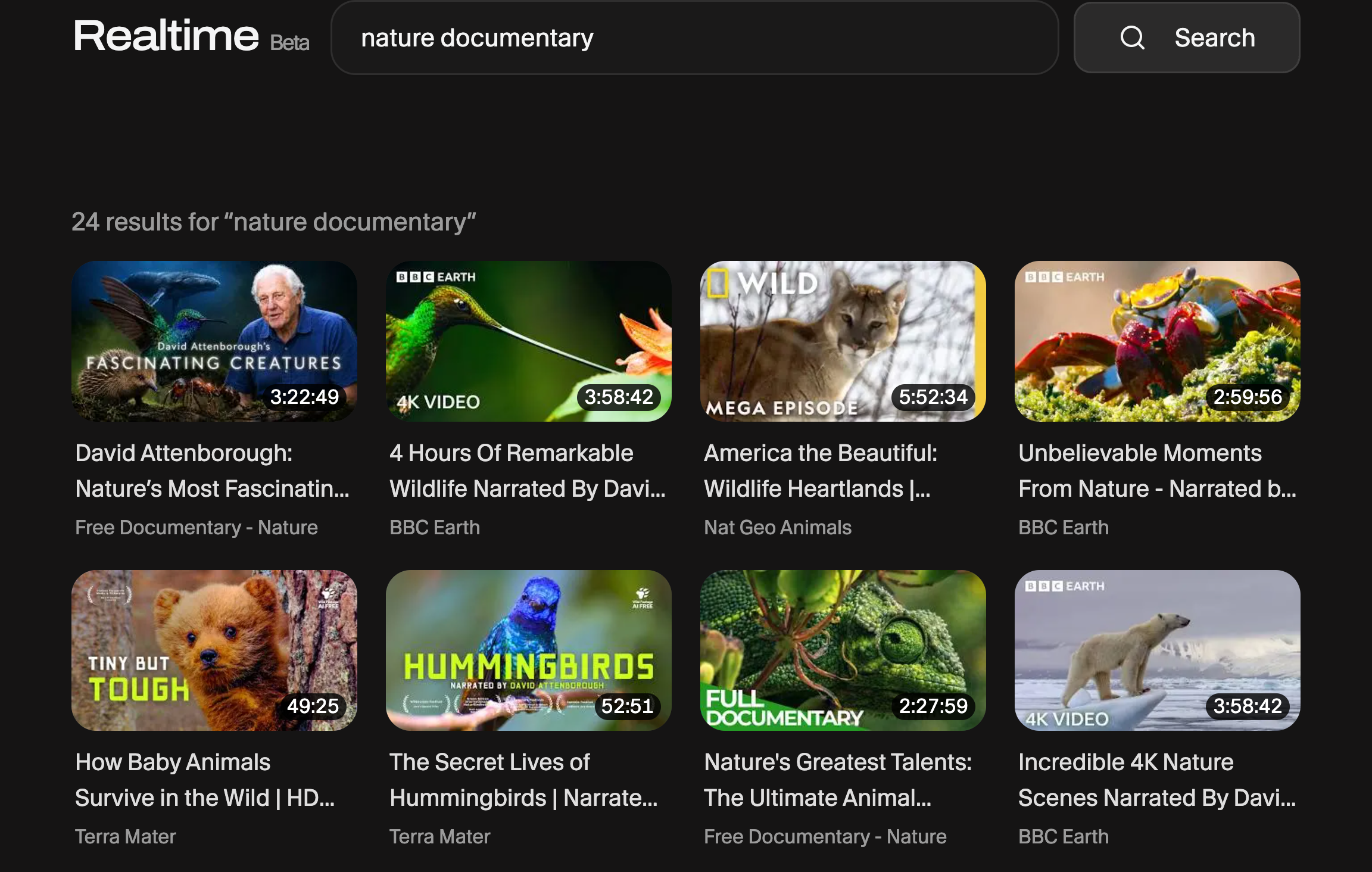
If search is unavailable, you can still paste a YouTube link to load a video.
Paste a YouTube link
Already know what you want to watch? Paste its YouTube URL into the same box and select “Load Video,” then press play.
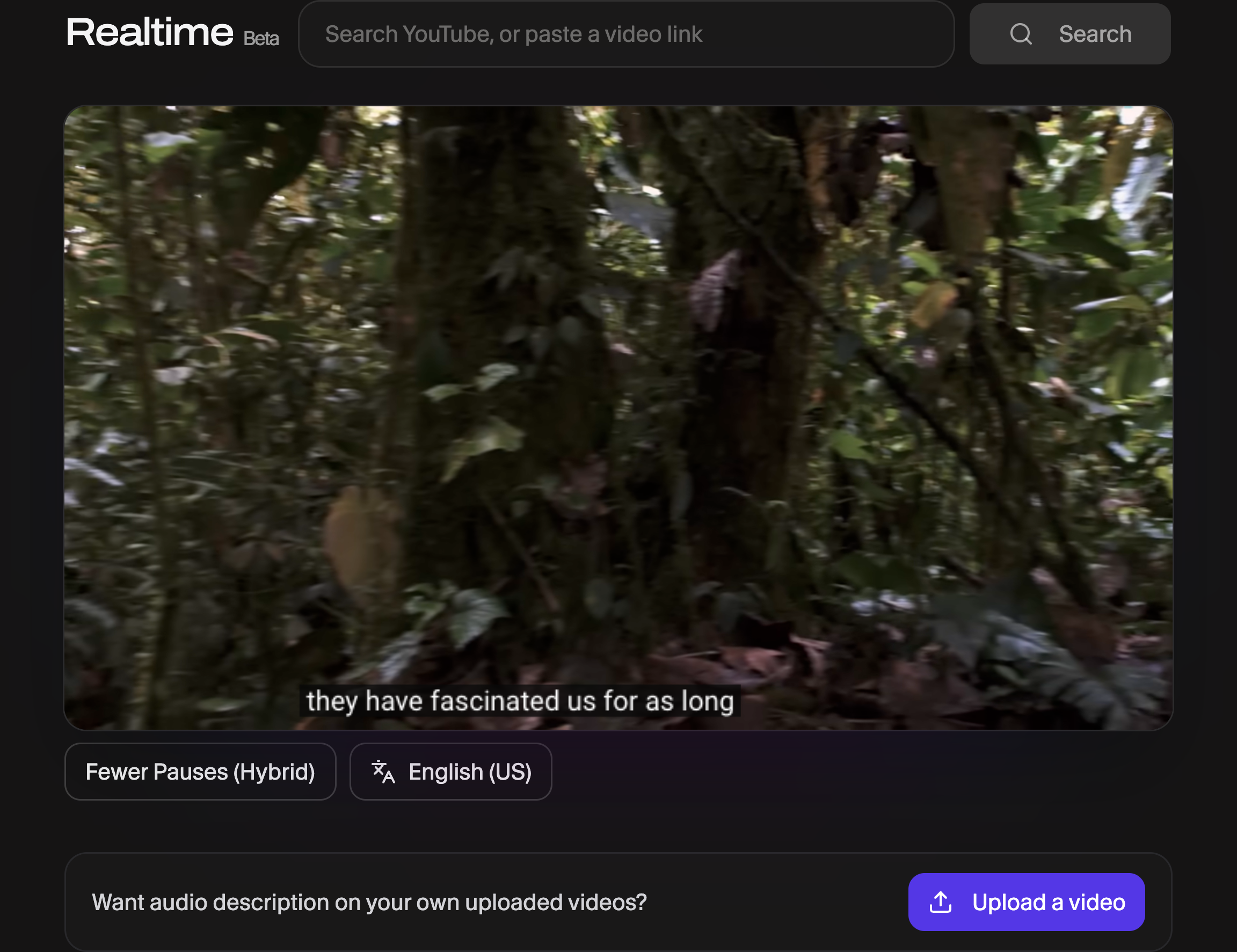
Add ViddyScribe to a YouTube URL
- Copy your YouTube link (for example:
https://www.youtube.com/watch?v=VIDEO_ID). - Put
https://viddyscribe.com/directly in front of the link and go:https://viddyscribe.com/https://www.youtube.com/watch?v=VIDEO_ID - Press play to watch with audio descriptions.
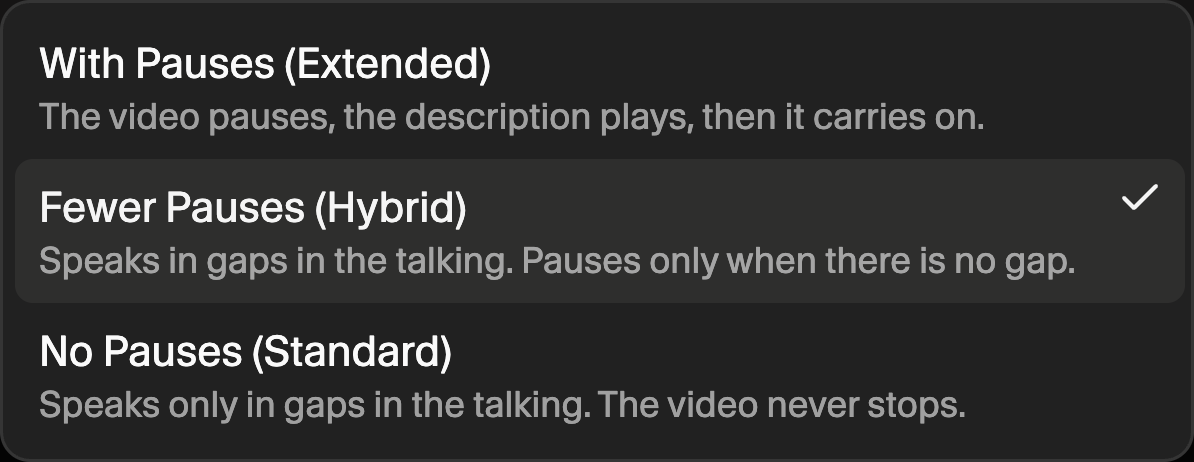
Realtime starts with Fewer Pauses (Hybrid), which speaks in gaps in dialogue and pauses when a description needs more time. In Realtime settings, you can also choose With Pauses (Extended) or No Pauses (Standard).
Why use ViddyScribe Realtime?
- Works with almost any public YouTube video.
- No need to wait for the creator to publish a separate descriptive track.
- High‑quality voices and multiple languages.
YouTube’s Native Audio Description Tracks
A small subset (less than 1% of YouTube videos) include an additional descriptive audio track uploaded by the creator.
On desktop/web:
- Open the video and click the Settings gear.
- If available, choose Audio track and select something like English (Audio Description).
On mobile (YouTube app):
- Tap the gear or three‑dot menu during playback.
- Look for Audio track and select an AD option if present.
Important: Captions/CC are not audio descriptions. If you do not see an Audio track option, that video likely does not have a native descriptive track.
FAQ
Does every YouTube video have audio description?
Do I need a browser extension to use ViddyScribe Realtime?
Make Your Videos Accessible in Seconds
98 languages · Standard & Extended AD · VTT, audio, and video