
Introduction
Many organizations today face a familiar challenge: they've already created large libraries of video content, but much of it is not fully accessible.
As ADA Title II enforcement ramps up, and as accessibility expectations rise across sectors, retrofitting existing videos with audio description (AD) has become a priority.
The good news? Adding audio description no longer has to be an expensive, slow, or complex process. Thanks to AI-powered tools like ViddyScribe, it's now faster and more affordable to make your existing video content accessible.
In this guide, we'll show you how.
What Is Audio Description?
Audio description is a spoken narration that describes important visual information in a video, such as actions, on-screen text, scene changes, and facial expressions, for viewers who are blind or have low vision.
It plays during natural pauses in the audio, supplementing dialogue and sound effects.
Example:
"A banner reading 'City Budget Meeting, April 3rd' appears on screen."
"The instructor writes 'E=mc²' on the whiteboard."
Without audio description, blind and low-vision users miss critical information that captions and dialogue alone don't convey.
Why Audio Description Is Required
ADA Title II requires state and local government bodies, including public schools and universities, to make their digital content accessible. The U.S. Department of Justice points to WCAG 2.1 Level AA as the standard, and two of its criteria apply directly to video:
- Success Criterion 1.2.5: audio description for all prerecorded video, so people who cannot see the screen still get the visual information.
- Success Criterion 1.2.2: captions for all prerecorded audio, so people who are deaf or hard of hearing get what is said.
If your videos are embedded on a website, LMS, or public platform and lack audio description, your organization may be out of compliance.
Need the legal context first? Review our breakdown of ADA Title II requirements for video content, then come back here for the implementation workflow.
The Traditional Way to Add Audio Description (Manual Production)
Historically, adding audio description meant:
- Hiring a writer to script the descriptions.
- Recording a professional voiceover.
- Re-editing the video to integrate the narration or creating a separate descriptive audio track.
- Testing and QA to ensure compliance.
This process is:
- Expensive (often $15–$35 per minute of video)
- Time-consuming (weeks per video)
- Difficult to scale (impractical for large video libraries)
That's why many organizations have struggled to retrofit existing content, until now.
Faster, Scalable Audio Description
ViddyScribe uses advanced AI to analyze your video and generate audio description without the need for manual scripting or voice recording.
Benefits:
- Cost savings: a fraction of the cost of traditional production.
- Speed: process videos in minutes, not weeks.
- Scalability: handle entire libraries of videos efficiently.
- Superior quality: best-in-class output with the simplest user experience.
- Flexible output: export VTT files or descriptive audio tracks ready for your website or video player.
For individuals and organizations facing large backlogs of inaccessible video content, ViddyScribe offers a practical path to accessibility.
Add Audio Description With ViddyScribe
ViddyScribe generates audio descriptions for your video in minutes, and your original video is never re-edited or re-uploaded. The guides below walk through it.
How to Generate AD for Your Video
The whole run, with screenshots of every step.
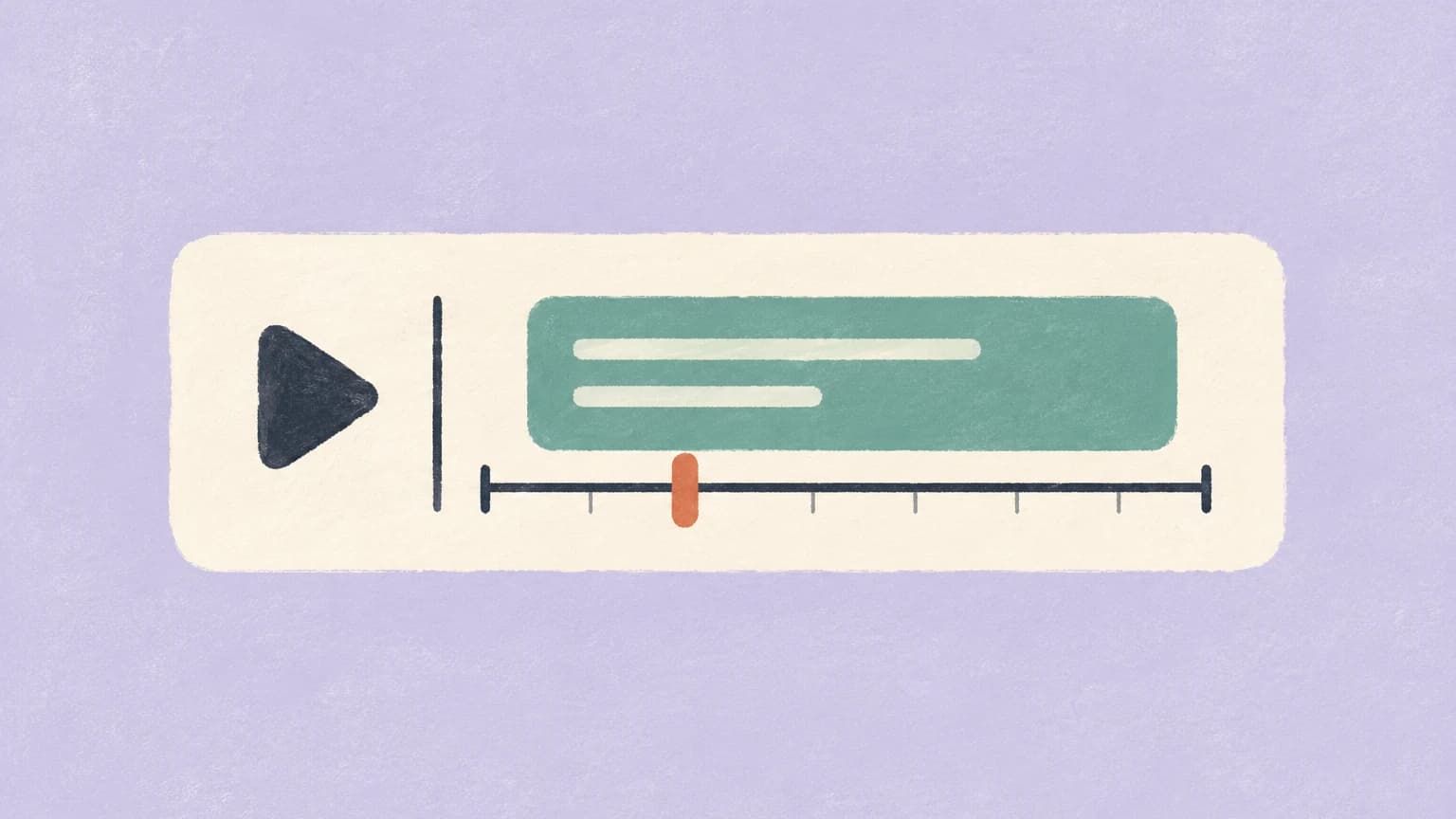
How to Edit Your Audio Descriptions
Read the script and change the wording before the video is made.
Then publish it
- Upload the VTT file alongside your video on your website or LMS.
- If your platform supports a descriptive audio track, add the mixed audio instead.
- Or publish the video with the description baked in, which works anywhere a regular video goes.
Conclusion
Retrofitting existing video content for ADA Title II and WCAG 2.1 compliance used to be a massive barrier, especially when it came to adding audio description.
ViddyScribe makes it easy.
- No re-editing required
- Works with your existing video platforms
- Best-in-class output with the simplest user experience
- Affordable and fast
- Scales to large video libraries
- Plus, get closed captions in 53 languages for complete accessibility
If your organization is ready to tackle its backlog of inaccessible videos or ensure that new content meets accessibility standards, ViddyScribe is ready to support that workflow.
Review pricing or try ViddyScribe today.
FAQ
Can I add audio description to an existing online video without re-editing it?
What files can I download, and which output should I use?
The available downloads depend on your AD type and the output you chose:
- AD Video (MP4): Your video with audio description baked in. Use this when publishing a complete described version, including Extended AD.
- AD Audio, Mixed (Standard AD): The original soundtrack combined with audio description. Use this as an additional audio track on a compatible video platform.
- AD Audio, AD only (Standard AD): Only the description narration. Use this when mixing the narration yourself in an editing application.
- AD Script: The written descriptions and their timing, in VTT, SRT, JSON, or EDL.
- Captions: Caption files supplied separately from the video; they are not burned into the picture.
- Transcript: A text version combining spoken content with the descriptions, useful for readers who prefer to review the content at their own pace.
Dashboard generations include captions and a transcript. Download available files from the video's panel in the Library.
Who needs audio description, and when is it required under ADA Title II?
How long does it take to add audio description with ViddyScribe?
Will ViddyScribe work with my current CMS, LMS, or video player?
Make Your Videos Accessible in Seconds
98 languages · Standard & Extended AD · VTT, audio, and video