Add a video and pick what you want back: the written descriptions, the narration as audio files, or a finished video with the narration already in it. ViddyScribe does the rest.
1. Add your videos
In your Library, click Generate.
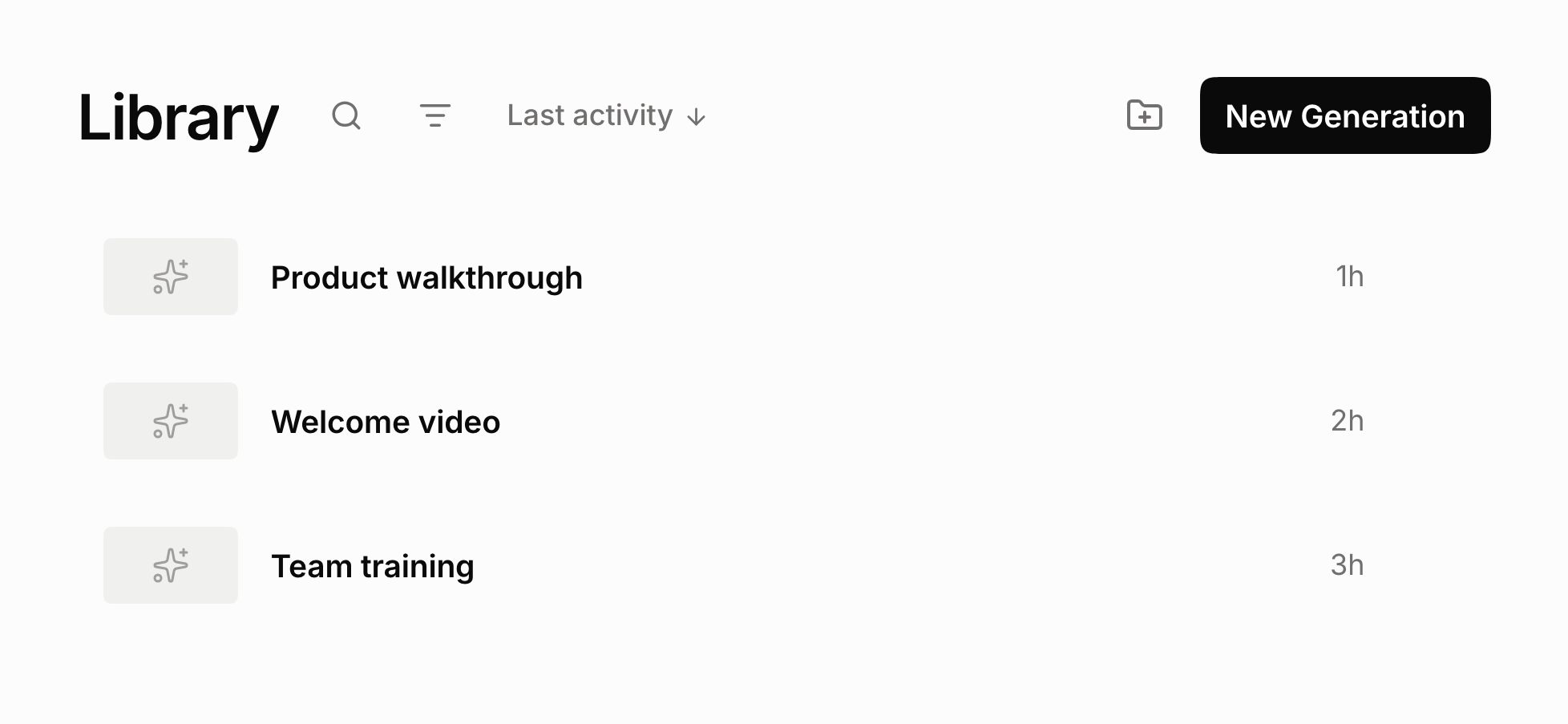
Add videos in one of three ways:
- Upload: a video file from your computer
- Add from Library: a video you already added
- Add from URL: paste a link to a video file or a YouTube video, depending on your plan.
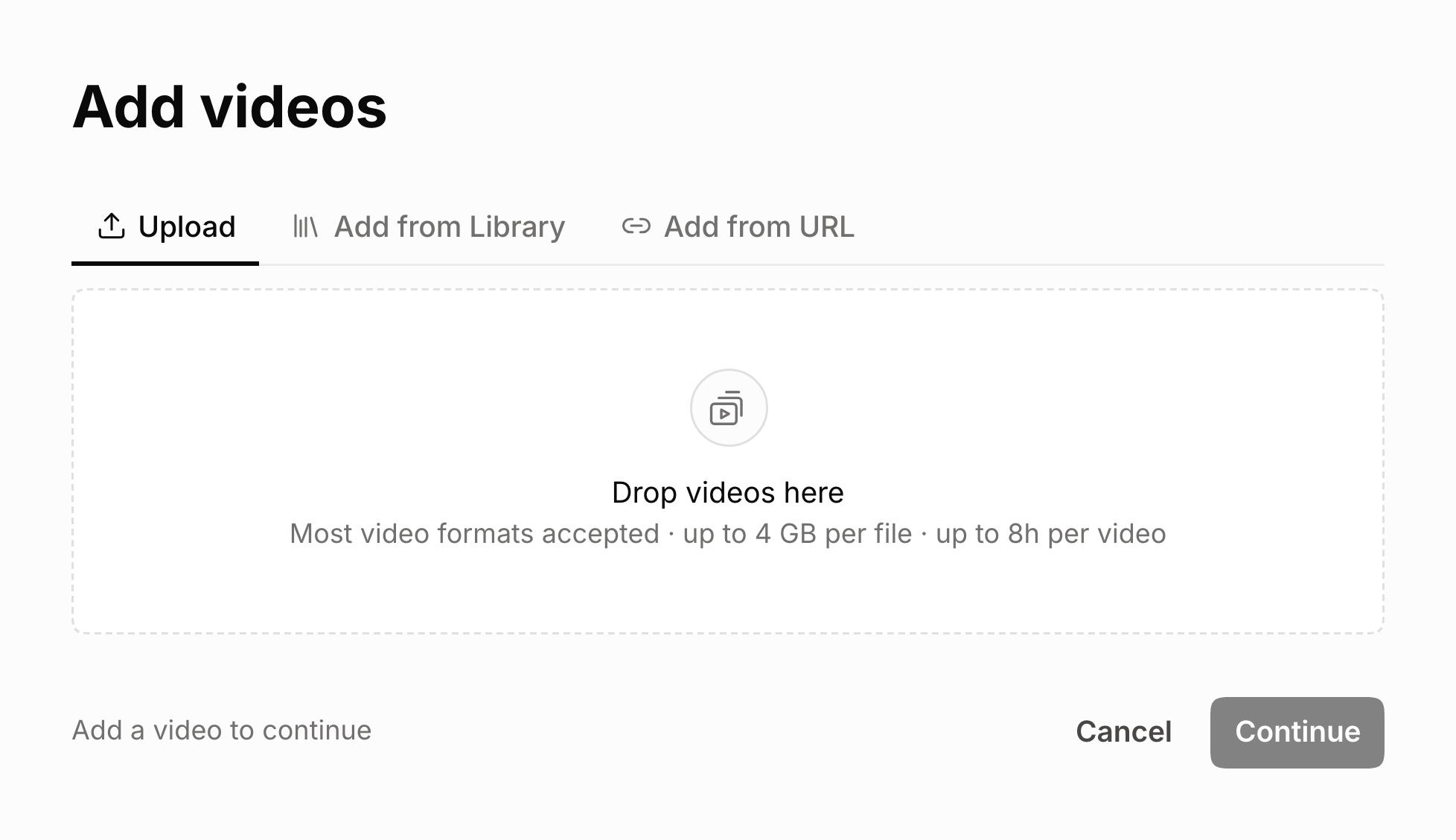
Then click Continue.
2. Choose your final output
Pick the last thing you need. Each one includes the ones before it, so AD Video also gives you the script and the audio.
- AD Script: the written descriptions and their timing
- AD Audio: your audio descriptions as audio files
- AD Video: your video with audio description baked in
Every output also comes with closed captions and a transcript.
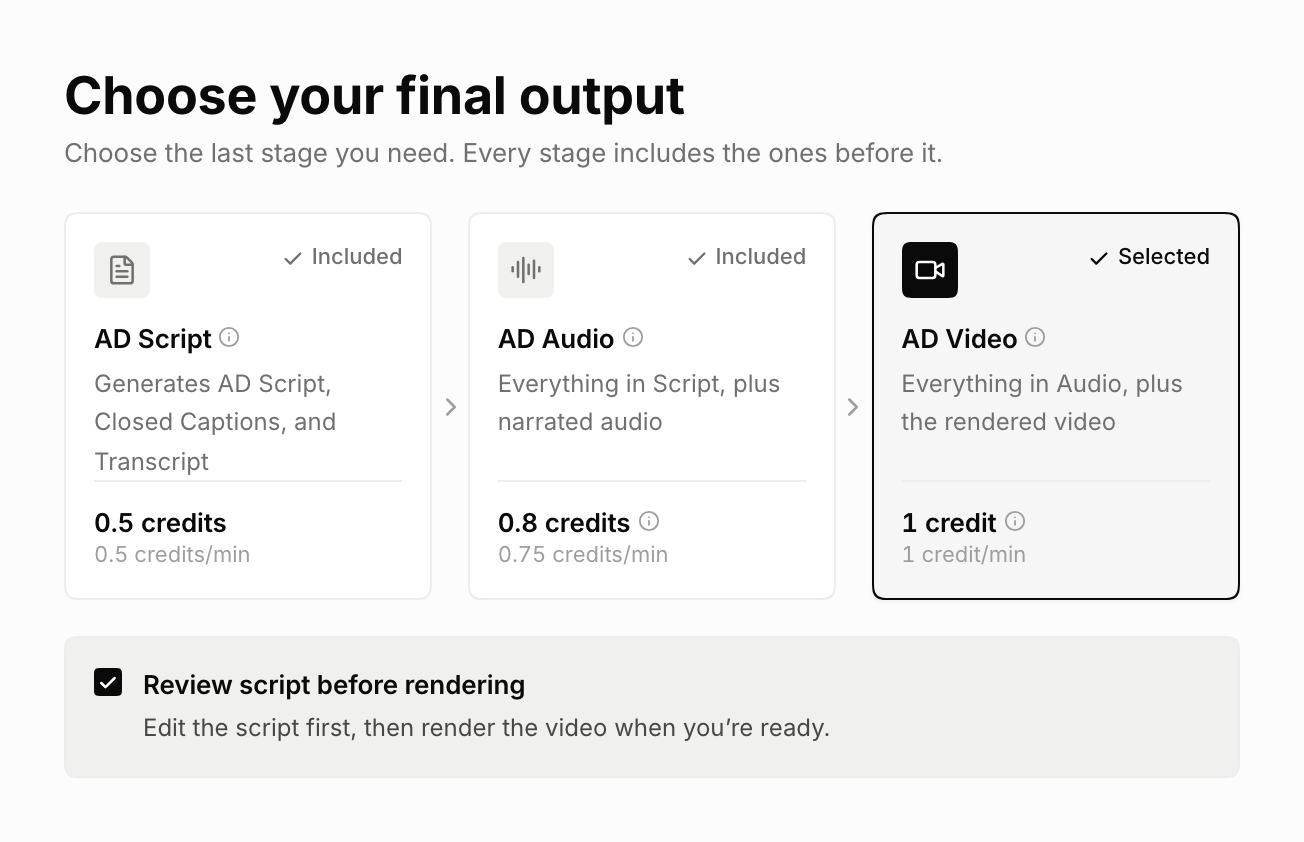
To review before creating the final output, check Review script before rendering below the output cards, above Settings. For AD Audio, the checkbox says Review script before creating audio. You can keep AD Video or AD Audio selected and still review the script.
Leave the box unchecked to create the output automatically. It starts unchecked unless your saved preset includes review. Checking it does not change the total price. AD Script does not need this checkbox because it already stops at the script.
3. Pick your settings
- AD type: Standard AD fits the descriptions into the gaps in the speech, so your video stays the same length. Extended AD pauses the video to make room, which suits videos where people talk the whole way through.
- Language and voice: the language the descriptions are written and spoken in, and who reads them. Play a sample before you decide. Samples are free.
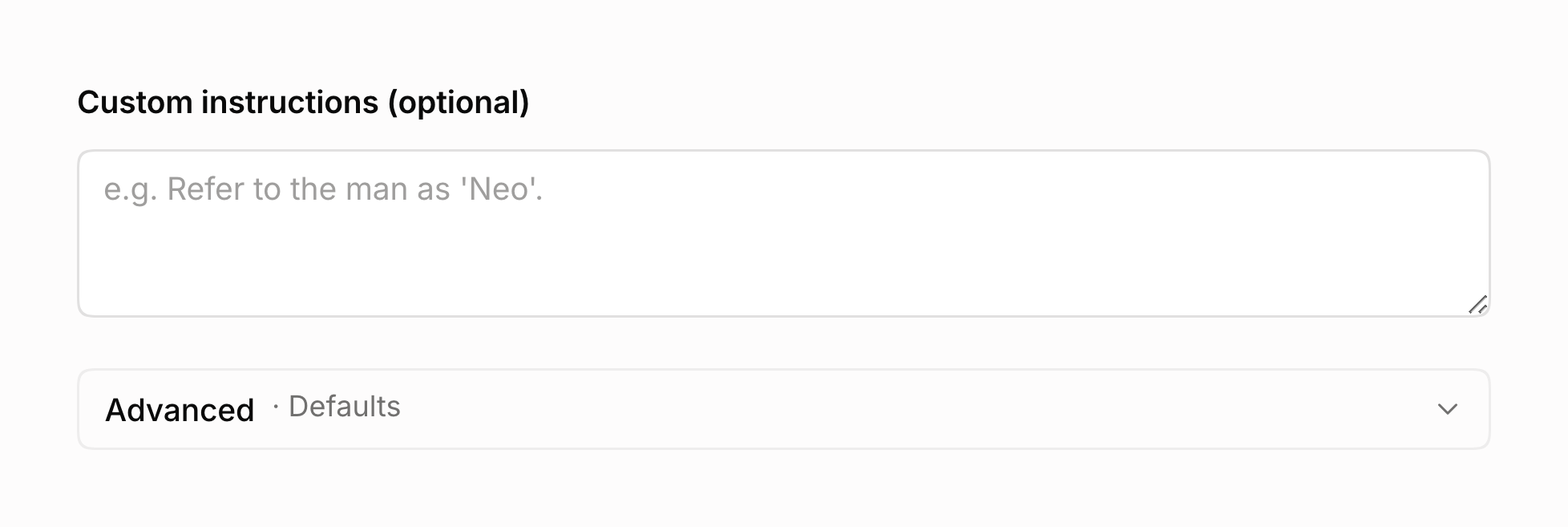
- Custom instructions (optional): anything ViddyScribe should know before it writes. How to refer to a person, words from your field, or the tone you want. For example, "describe outfits and colors in detail when characters first appear".
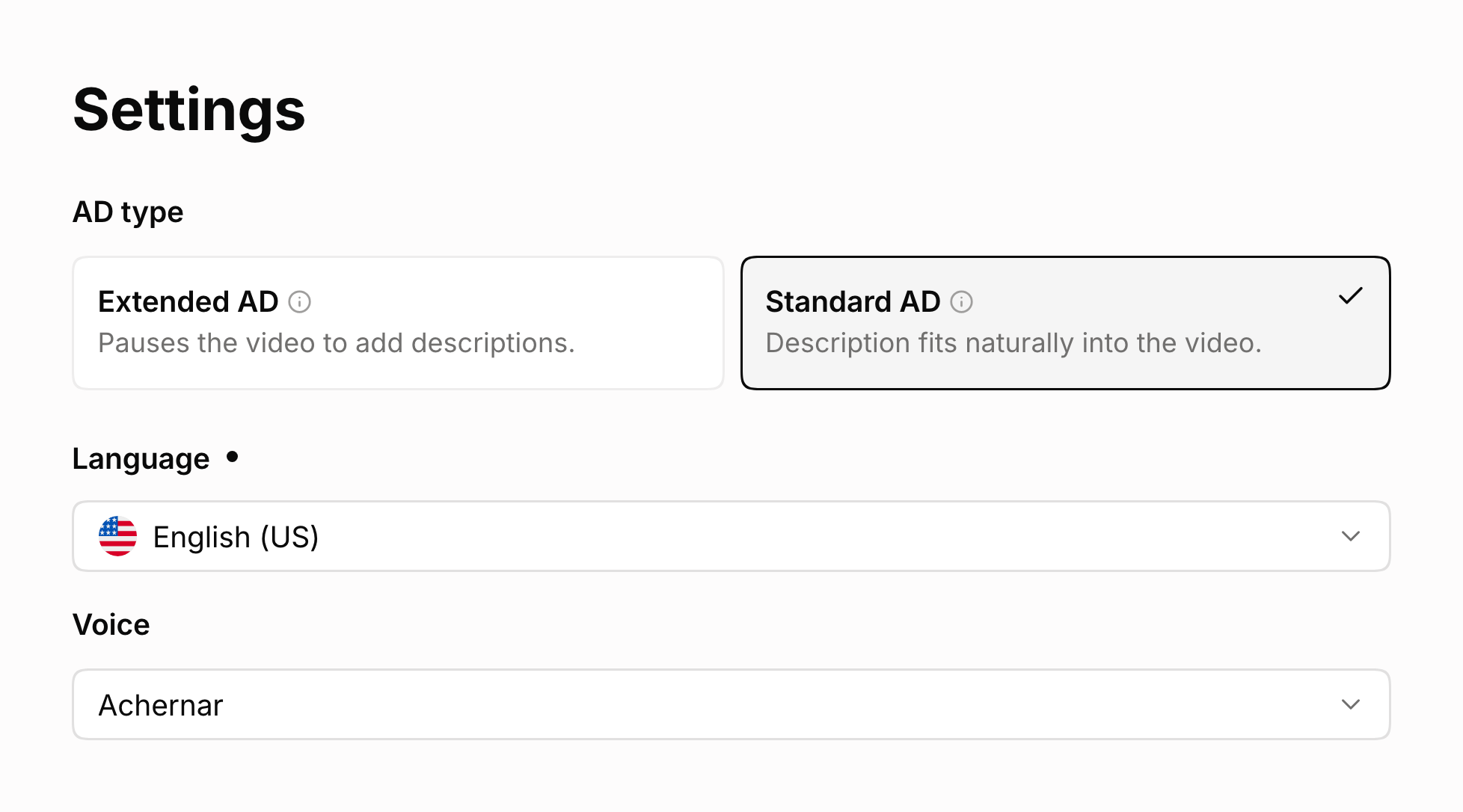
You can skip Advanced. Those settings are already set for most videos. The FAQ below says what each one does.
4. Generate
Click Generate. With review checked, ViddyScribe prepares the script and waits for you to review it before creating the audio or video. With review unchecked, it creates your selected output automatically.
To review and edit, follow How to Edit Your Audio Descriptions.
You can leave the page. The result shows up in your Library.
Most videos are done in minutes. While it runs, hover the info icon next to the status to see the estimate for your video.
5. Download
Open the video in your Library and download the files you need. Not sure which file to use? See the FAQ below.
FAQ
Can I review and edit the descriptions before generating the final audio or video?
Do I need to change the generation settings?
Why did my video get only a few descriptions?
What files can I download, and which output should I use?
The available downloads depend on your AD type and the output you chose:
- AD Video (MP4): Your video with audio description baked in. Use this when publishing a complete described version, including Extended AD.
- AD Audio, Mixed (Standard AD): The original soundtrack combined with audio description. Use this as an additional audio track on a compatible video platform.
- AD Audio, AD only (Standard AD): Only the description narration. Use this when mixing the narration yourself in an editing application.
- AD Script: The written descriptions and their timing, in VTT, SRT, JSON, or EDL.
- Captions: Caption files supplied separately from the video; they are not burned into the picture.
- Transcript: A text version combining spoken content with the descriptions, useful for readers who prefer to review the content at their own pace.
Dashboard generations include captions and a transcript. Download available files from the video's panel in the Library.
Can I add audio description to an existing YouTube video without losing its URL, views, or comments?
Yes, if your YouTube channel has access to the additional audio-track feature.
Generate Standard AD, then download AD Audio (Mixed), which contains both the original soundtrack and the audio description. Add that file as an additional audio track to the existing video in YouTube Studio. Because you’re updating the existing video, its URL, views, and comments remain attached to it.
The audio track must match the existing video’s runtime, so use the same source edit. Extended AD adds pauses and changes the runtime, which means it needs to be published as a separate video. You can link that version from the original video’s description.
Will ViddyScribe work with my current CMS, LMS, or video player?
Make Your Videos Accessible in Seconds
98 languages · Standard & Extended AD · VTT, audio, and video